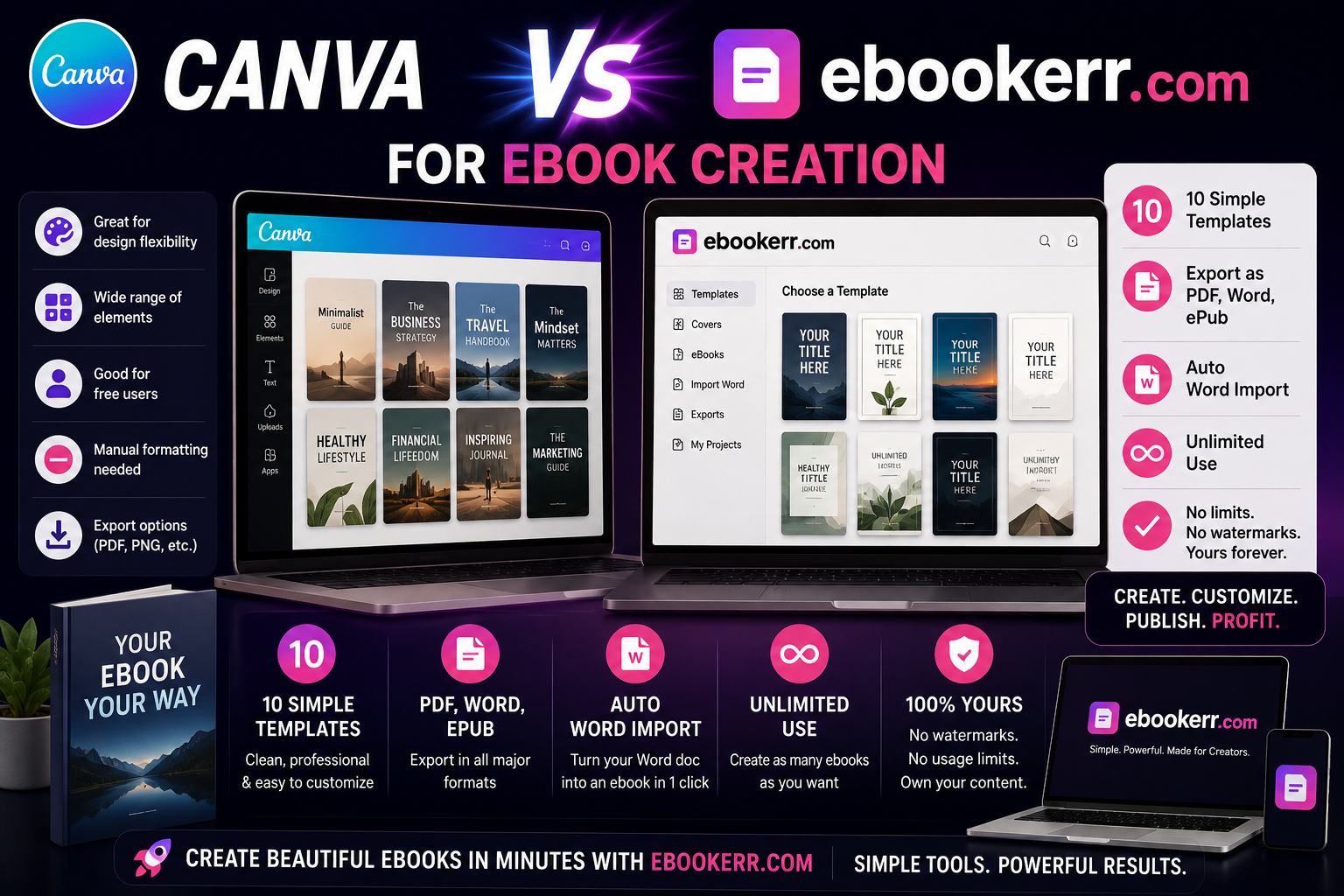
Quick answer: Canva is a general-purpose design tool that happens to include ebook templates, which makes it strong for visual, image-heavy ebooks like lead magnets or workbooks, but weaker for longer, content-heavy ebooks since it requires manually copying and pasting text page by page and caps a single design at 100 pages. Ebookerr is built specifically around turning written content into a finished ebook — importing existing text, applying consistent formatting automatically, and exporting to PDF, EPUB, and Word without manually laying out each page. If your priority is visual design flexibility and you’re comfortable manual formatting, Canva fits well. If your priority is getting written content into a polished, sellable ebook quickly without page-by-page design work, Ebookerr is built for exactly that.
That’s the short version if you just needed a quick steer. But the actual right choice depends on what kind of ebook you’re making and how you already work, so let’s go through the real differences.
What Canva Is Actually Built For
Canva started as a general graphic design tool, and its ebook functionality is really an extension of that core purpose rather than a dedicated product. This shows up clearly in how the workflow is structured: you choose from a large library of ebook templates, then manually drag, drop, and edit each page’s design elements — text boxes, images, colors, and layout — one page at a time.
This design-first approach makes Canva genuinely strong for certain kinds of ebooks: short lead magnets, visually rich workbooks, and freebies where the visual layout matters as much as the words themselves. Its massive template library and stock photo collection mean you rarely start from a completely blank page, and the drag-and-drop editor is approachable even with zero design background.
Where Canva’s Workflow Gets Harder for Longer Ebooks
The catch appears once you move from a 10-page lead magnet to a genuine, longer-form ebook. A few specific limitations become noticeable:
No direct import from your existing content. If your ebook already exists as a Word document, Google Doc, or a set of blog posts, this tool doesn’t let you import that text directly into a design. You copy and paste content into each text box manually, page by page — workable for a short freebie, tedious for anything running 40, 80, or 150 pages.
A 100-page limit per single design. It caps an individual ebook design at 100 pages. Longer manuscripts require creating a second design and merging the exported PDFs afterward using a separate tool, adding an extra step outside Canva itself.
Formatting consistency is manual, not automatic. Since each page is essentially its own design canvas in this tool, keeping heading styles, fonts, and spacing consistent across dozens of pages is your responsibility to maintain by eye, rather than something the tool enforces structurally.
No built-in EPUB or Word export. It exports cleanly to PDF (standard or print quality), but doesn’t offer EPUB or editable Word output — a limitation if you need your ebook readable on e-readers or want to hand off an editable version to someone else.
None of this makes it a bad tool — it simply reflects that ebooks are one use case among many it supports, rather than the core thing it was built to do.
What Ebookerr Is Actually Built For
Ebookerr takes the opposite starting point: instead of a general design canvas that happens to support ebooks, it’s built specifically around the process of turning already-written content into a finished, sellable ebook. The core workflow assumes you’re starting from text — whether that’s a manuscript you’ve drafted, blog posts you’re repurposing, or notes you’re organizing into a guide — and focuses on getting that content formatted and exported quickly, rather than requiring you to design each page individually.
Direct content import, instead of manual copy-paste per page. Rather than pasting text into individual text boxes one page at a time, this workflow is built around bringing in your existing written content and applying consistent formatting across the entire manuscript at once.
Consistent formatting applied automatically. Headings, body text, spacing, and structure stay uniform throughout the ebook by default, rather than needing to be manually checked page by page — a meaningful difference once you’re working with anything longer than a short freebie.
Multiple export formats from one source. It exports to PDF, EPUB, and Word, covering direct sales, e-reader compatibility, and editable handoffs without needing a separate conversion tool.
No practical page-count ceiling to work around. Since the workflow isn’t built around individual page-canvas design, longer manuscripts don’t require splitting into multiple files and merging them afterward.
The tradeoff is the reverse: its strength is speed and consistency for content-heavy ebooks, not the deep, freeform visual design flexibility a dedicated graphic design tool offers for a highly custom, image-driven layout.
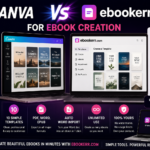
Side-by-Side Comparison
| Factor | Canva | Ebookerr |
|---|---|---|
| Best suited for | Visual lead magnets, image-heavy workbooks | Longer, content-heavy ebooks and guides |
| Importing existing text | Manual copy-paste per page | Direct content import |
| Formatting consistency | Manual, page by page | Applied automatically |
| Page limit per project | 100 pages per design | No comparable ceiling |
| Export formats | PDF (standard/print) | PDF, EPUB, Word |
| Design flexibility | Very high, freeform | Template-guided, consistency-focused |
| Learning curve | Low, but time-consuming at scale | Low, content-first workflow |
Which One Fits Your Specific Ebook
Choose Canva if: your ebook is short (roughly under 30–40 pages), visual design is a major part of its value (heavy use of custom graphics, illustrations, or brand-specific layouts), and you’re comfortable with — or enjoy — manually designing each page.
Choose Ebookerr if: you already have written content (a manuscript, blog posts, or notes) that needs to become a polished ebook without page-by-page design work, your ebook runs longer than a short freebie, you need EPUB or Word output alongside PDF, or your priority is getting from finished writing to a sellable file as quickly as possible.
Consider using both, for different projects. Many creators use Canva specifically for short, highly visual lead magnets and social-driven freebies, while using Ebookerr for their core, longer-form paid ebooks — treating each tool as suited to a different job rather than picking one exclusively.
A Practical Example
Imagine you’ve written a 60-page guide on freelance pricing, repurposed from a set of blog posts (similar to the repurposing process covered elsewhere on this site). In Canva, you’d need to paste each section into a template page by page, watch the page count against the 100-page ceiling, and manually keep headings and spacing consistent across all 60 pages — likely several hours of layout work even with the writing already finished. In Ebookerr, that same 60-page manuscript can be brought in as existing content and formatted consistently across the whole document in a fraction of that time, with PDF, EPUB, and Word versions ready from the same source.
Now imagine the opposite case: a 12-page lead magnet built around bold graphics, custom illustrations, and a highly specific brand look. Here, Canva’s freeform design canvas and enormous template and stock-image library genuinely offer more creative control than a content-first tool is built to provide.
The Honest Limitation on Both Sides
Neither tool solves every part of publishing an ebook. Canva doesn’t help with the actual writing, structuring, or editing of your content — it assumes you already know what goes on each page. Ebookerr assumes you have the writing largely finished and focuses on formatting and exporting it well, rather than acting as a from-scratch visual design studio for highly custom, illustration-heavy layouts. Picking between them comes down to which part of the ebook-creation process — visual design freedom, or content-to-finished-file speed — actually matches the project in front of you.
How Each Tool Handles the Cover Design Step
Cover design is worth a separate mention, since it’s often the single most visible page of any ebook. A general design tool’s strength shows up clearly here: an enormous library of pre-made cover layouts, stock photography, and font pairings makes it easy to produce an eye-catching cover without any outside design help, and many creators use exactly this kind of tool for the cover even when the interior content is produced elsewhere.
A content-first tool typically takes a simpler, more templated approach to covers — solid, clean, professional layouts that match the interior formatting, prioritizing consistency over the kind of highly custom visual experimentation a dedicated design canvas allows. Neither approach is objectively better; a highly polished, brand-specific cover benefits from more design flexibility, while a straightforward, professional cover that matches the rest of the document benefits from consistency and speed instead.
Thinking About Total Time, Not Just Per-Page Effort
It’s easy to compare these two options purely on a feature list, but the more useful comparison is total time to a finished, sellable file. A short, highly visual freebie might take roughly the same amount of time either way, since there isn’t much content to format regardless of tool. But as manuscript length grows — 40, 80, or 150 pages — the gap widens considerably: page-by-page manual design scales roughly linearly with page count, while a content-first, format-once workflow scales much more slowly, since formatting is applied across the whole document rather than repeated by hand for every page.
This is really the core tradeoff underneath every other point in this comparison: one approach optimizes for maximum visual control at the cost of manual, page-by-page effort; the other optimizes for speed and consistency at the cost of some of that freeform design flexibility. Matching that tradeoff to your specific project — rather than assuming one tool is universally better — is the most useful way to decide.
Frequently Asked Questions
Can I use Canva and Ebookerr together on the same project? Some creators design a cover or a few visual pages in Canva, then bring the core written content through Ebookerr for the bulk of the manuscript — though this depends on your specific workflow and how much custom visual design your particular ebook actually needs.
Is Canva cheaper than Ebookerr? Canva has a free tier and a paid Pro plan; Ebookerr runs on a flat monthly subscription. Cost comparison really depends on how much time page-by-page design work would otherwise take you in Canva, since that time has a real cost even on a free tool.
Does Ebookerr support visual design at all? Yes, formatting includes visual structure and templates, but the emphasis is on consistent, content-first formatting across a full manuscript rather than freeform, page-by-page graphic design.
Which tool is better for a first-time ebook creator? For a short freebie or lead magnet, Canva’s templates make starting easy. For a longer, content-focused ebook meant to be sold, Ebookerr’s content-first workflow generally gets you to a finished, exportable file faster.