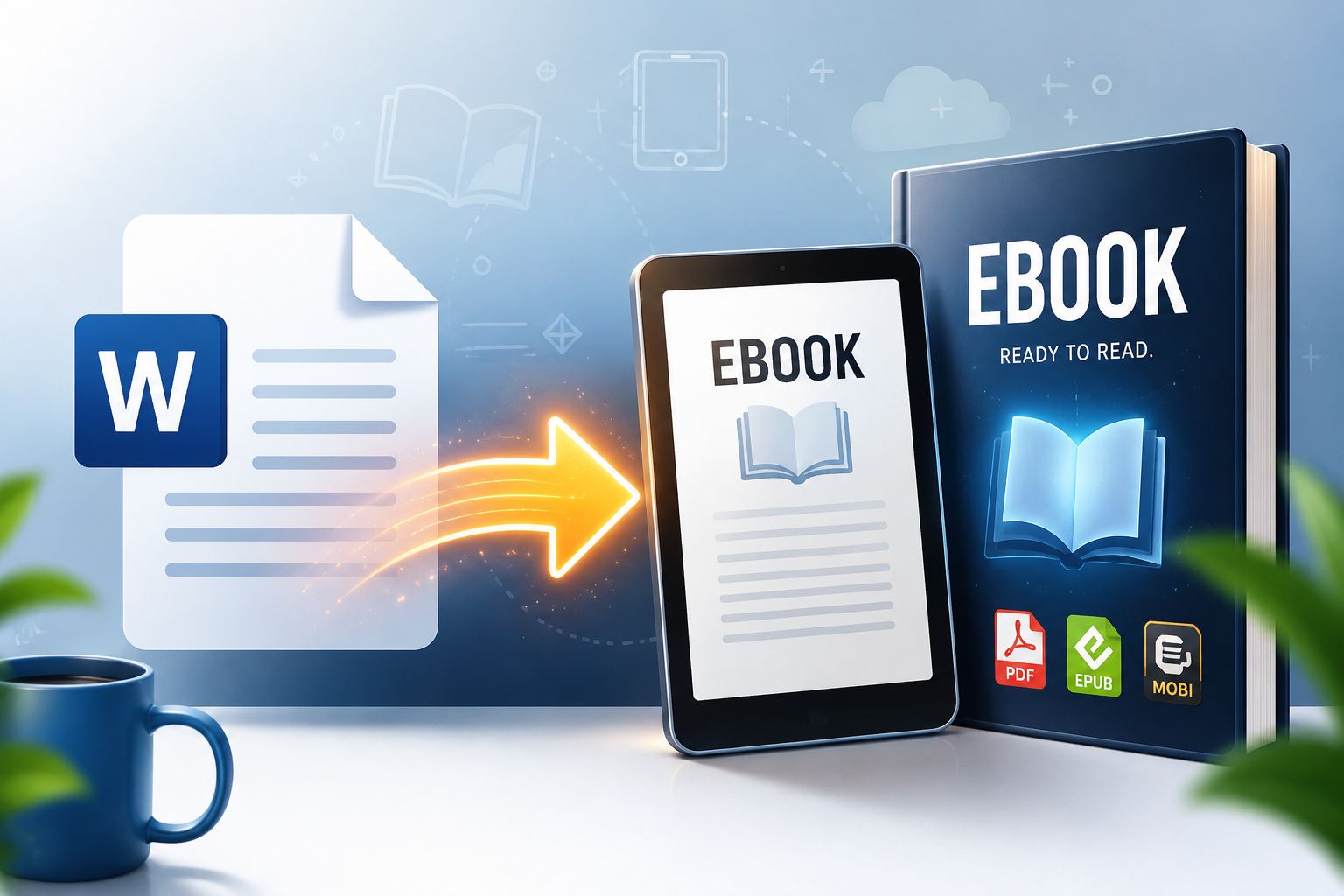
How to Convert a Word Document Into a Professional Ebook
Quick answer: To convert a Word document into a professional ebook, clean up your formatting first (headings, page breaks, images), then export or upload the file into an ebook conversion tool that generates a properly structured PDF and EPUB — complete with a table of contents, a cover page, and consistent styling. Manual conversion in Word alone rarely produces a file that looks right on Kindle, Apple Books, or as a downloadable PDF, which is why most creators use a dedicated tool rather than Word’s built-in “Save As PDF” option.
That’s the short version. Below is the full process, including the mistakes that make self-converted ebooks look amateurish, and where a purpose-built tool saves you hours.
Why Word Documents Don’t Just “Become” Ebooks
A Word document and an ebook are built for different jobs. Word is designed for editing on a fixed page size, with margins, page numbers, and a layout that assumes someone is scrolling through a document on a screen roughly the size of a piece of paper. An ebook, especially in EPUB format, is designed to reflow — the text resizes and re-wraps depending on the reader’s screen, font size, and device. A file that looks perfect in Word can fall apart the moment it’s opened in a Kindle app or an EPUB reader, with broken headings, images floating in the wrong place, or a table of contents that doesn’t link anywhere.
This is the single biggest reason people get frustrated trying to convert a Word document into an ebook themselves. The document was never structured with an ebook’s rules in mind, so the conversion exposes every shortcut that was taken while writing it.
Step 1: Clean Up the Structure Before You Convert Anything
Before touching any conversion tool, the source document needs a few things in place. This step matters more than the tool you eventually use.
Use real heading styles, not bold text. If your chapter titles are just bold, larger text typed manually, most conversion tools won’t recognize them as chapters. Go through the document and apply Word’s built-in Heading 1 style to chapter titles and Heading 2 to subheadings. This single change is what allows an ebook tool to automatically build a working table of contents.
Remove manual page breaks used for spacing. Writers often hit Enter several times to push a chapter to the next page. In an ebook, this creates awkward blank pages or strange gaps, since the “page” concept doesn’t really exist in a reflowable EPUB. Use an actual page break (Insert > Page Break) only where a chapter should genuinely start fresh, and delete stacked blank paragraphs everywhere else.
Check your images. Images that are wrapped with text (using “Tight” or “Square” wrapping in Word) tend to jump around unpredictably during conversion. Set images to “In Line with Text” so they stay anchored exactly where you placed them.
Simplify tables. Complex tables with merged cells often break in EPUB format, since e-readers have limited table support. If a table is decorative rather than essential, consider converting it into a simple bulleted list instead.
Standardize fonts. Pick one or two fonts for the whole manuscript. Ebook readers apply their own font rendering, and having six different fonts scattered through a document creates inconsistent, unprofessional-looking pages once it’s rebuilt as an ebook.
Doing this cleanup first typically takes less time than fixing a badly converted file after the fact, and it’s the difference between an ebook that looks self-published and one that looks professionally produced.
Step 2: Decide Which Ebook Formats You Actually Need
Not every ebook needs every format. Before converting, it helps to know where the file is going:
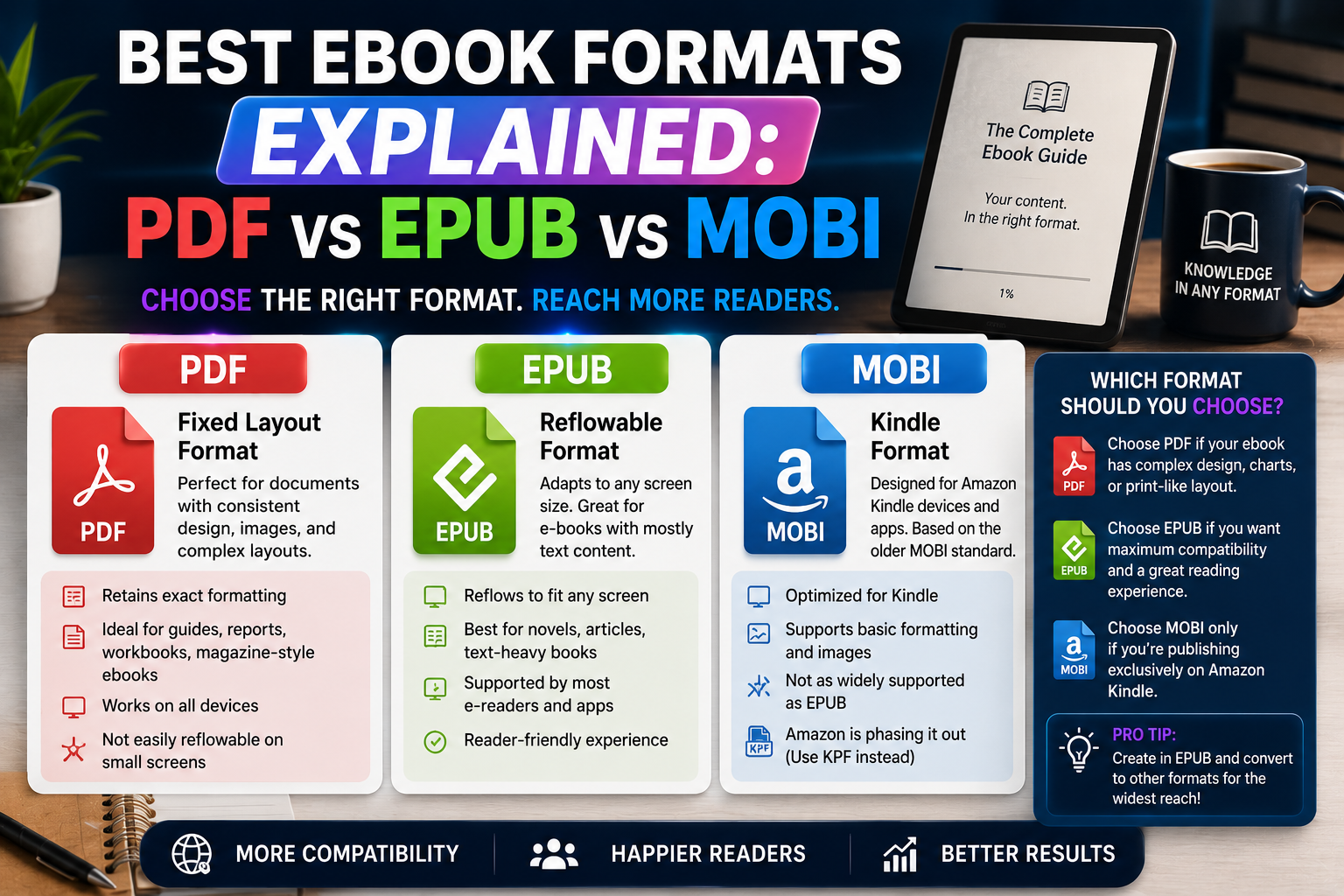
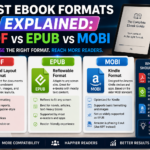
- PDF is the right choice for a downloadable lead magnet, a workbook, or anything with a fixed layout you want to look identical on every device — think of it as a printed page delivered digitally.
- EPUB is the standard for most ebook retailers and reading apps (Apple Books, Kobo, Google Play Books) because it reflows to fit any screen.
- MOBI or KPF is what Amazon’s Kindle historically used, though Kindle now also accepts EPUB directly through Kindle Direct Publishing in most cases.
If you’re building a lead magnet for a website, PDF alone is often enough. If you’re planning to sell the book more broadly, having both a PDF and an EPUB version covers nearly every use case a reader might have.
Step 3: Choose a Conversion Method
There are three realistic paths once your Word document is cleaned up.
Option A: Word’s Built-In Export
Word can export directly to PDF (File > Save As > PDF), which works fine for simple fixed-layout documents. However, Word has no native way to generate a real EPUB file, and its PDF export doesn’t create a clickable table of contents or proper ebook metadata (title, author, cover) unless you add that manually in another program afterward. This option is fastest but produces the least polished result.
Option B: Manual EPUB Building With Code Editors
Technically inclined creators sometimes build EPUB files by hand, since an EPUB file is really just a structured ZIP archive containing XHTML files. This gives full control over formatting but requires understanding EPUB’s internal file structure, writing XHTML and CSS, and manually validating the file — a process that has a real learning curve for anyone without a coding background.
Option C: A Dedicated Ebook Conversion Tool
This is the middle ground most independent authors, coaches, and small businesses end up choosing: upload the cleaned-up Word document, and the tool automatically detects your headings, builds the table of contents, applies consistent styling, and exports both PDF and EPUB versions ready to download or publish.
Ebookerr is built specifically for this. You upload your Word document (or paste your text directly into the editor), and Ebookerr detects your chapter headings automatically, builds a working table of contents, and exports a properly formatted PDF and EPUB in a few minutes — no coding, no manual XHTML, and no wrestling with EPUB validators. You can also pick a cover style and layout theme directly inside the tool, so the finished ebook looks designed rather than converted. For anyone who wants a professional result without learning ebook file formats, this is the fastest and most reliable route, and it’s the option most people converting a Word document into an ebook for the first time end up sticking with.
Step 4: Add the Details That Make It Feel Like a Real Book
Once the core conversion is done, a few finishing touches separate a professional ebook from a converted Word file:
A proper cover. Even a simple, well-designed cover with your title, subtitle, and author name signals quality before a reader opens the first page. Avoid using a blank white page with just a title in plain text — it’s one of the fastest ways to make an ebook look unfinished.
A working table of contents. Readers expect to jump between chapters, especially on longer ebooks. If your headings were properly styled in Word, most conversion tools will generate this automatically.
Consistent front matter. A title page, a short copyright notice, and an optional dedication or introduction page give the ebook the same structure readers expect from traditionally published books.
Metadata. Title, author name, and language should be embedded in the file itself, not just written on the cover. This is what allows the file to display correctly in an e-reader’s library view, and it’s something manual Word exports typically miss entirely.
Common Mistakes to Avoid
A few issues come up again and again when people convert a Word document into an ebook for the first time:
- Skipping the heading cleanup and hoping the conversion tool will “figure out” the chapter structure on its own — it usually won’t.
- Using too many font sizes and colors, which look inconsistent once the ebook reflows on different devices.
- Forgetting to test on more than one device. A PDF might look perfect on a laptop but be nearly unreadable on a phone screen if the text size wasn’t considered.
- Not compressing images, which can bloat file size and slow down downloads, particularly for a PDF lead magnet where load speed affects conversion rates.
- Publishing without a final proofread pass after conversion, since some formatting shifts can introduce awkward line breaks or spacing that wasn’t in the original Word document.
How Long Does the Whole Process Take?
For a document that’s already reasonably well-structured, cleanup usually takes 20–40 minutes for a typical ebook-length manuscript. Using a dedicated conversion tool, the actual conversion into PDF and EPUB takes just a few minutes, since the heading detection, table of contents, and formatting are handled automatically. Manually coding an EPUB from scratch, by comparison, can take several hours even for someone comfortable with XHTML and CSS — which is why most people converting a Word document into an ebook for the first time gravitate toward a tool rather than building the file by hand.
Frequently Asked Questions
Can I convert a Word document into an ebook for free? Yes, to a degree. Word’s built-in PDF export is free and works for a basic fixed-layout PDF. Getting a real EPUB file with a working table of contents and proper metadata usually requires either a free or paid conversion tool, or manually building the EPUB structure yourself, which costs time rather than money.
Do I need coding skills to convert a Word document into an ebook? No. If you use a dedicated conversion tool, uploading a cleaned-up Word file and exporting PDF/EPUB versions requires no coding at all. Coding only becomes necessary if you choose to build the EPUB file by hand from its underlying XHTML and CSS structure.
Will my formatting stay exactly the same after conversion? Not always, and that’s expected. EPUB is a reflowable format, so text will re-wrap to fit different screens and font sizes. A PDF will preserve your exact layout, which is why PDF is the better choice when precise formatting matters more than device flexibility.
What file size should I aim for? Keep image files compressed and avoid embedding unnecessarily large graphics. A text-heavy ebook with a handful of images should typically stay well under 20MB, which keeps downloads fast and avoids upload limits on some publishing platforms.
Try It Yourself
If you’d rather skip the manual cleanup-and-export process entirely, Ebookerr handles the whole conversion for you: upload your Word document, and it takes care of chapter detection, table of contents, cover design, and exporting both PDF and EPUB — ready to publish or send to readers the same day.
Final Thoughts
Converting a Word document into a professional ebook comes down to two things: preparing the document properly before conversion, and choosing a method that matches how polished you need the final result to be. A quick PDF export works for casual internal use, but if the ebook is going to represent your business, be sold to customers, or serve as a lead magnet on your website, it’s worth using a tool that builds a real table of contents, embeds proper metadata, and exports both PDF and EPUB formats correctly the first time. Once the source document is clean, that final step takes minutes rather than hours.